 InspectDay
Switching
Switch from Home Inspector Pro
Copy your Home Inspector Pro folder before you move.
Home Inspector Pro's file and export steps, checked on
- What moves
- Your templates and your own comments, rebuilt in your InspectDay account.
- What does not move
- A vendor's stock comment library, past reports and client records.
- How
- The team rebuilds your templates by hand, from your .tpz template files.
What to take out of Home Inspector Pro
- Your templates are
.tpzfiles. - On Windows, these folders are under
C:\Program Files (x86)\Home Inspector Pro:- Your templates, in the Data folder.
- Report PDFs, in the Client Reports folder. Copy the report PDFs from there.
- Images related to your inspections, in the Picture Library folder. Copy them from there.
- On Windows, copy the whole Home Inspector Pro folder to an external hard drive or a file host such as Dropbox or Google Drive. The backup covers Inspection Files, Report PDFs and Templates.
- On a Mac, copy the Home Inspector Pro folder in Documents. Copying it moves your templates (
.tpz) and inspection files (.hzf) to another Mac. - Export your contacts from HIP Office: choose Data Management, then Clients or Agents, then Export Clients or Export Agents; HIP Office emails the
.csvfile to you.
What InspectDay rebuilds
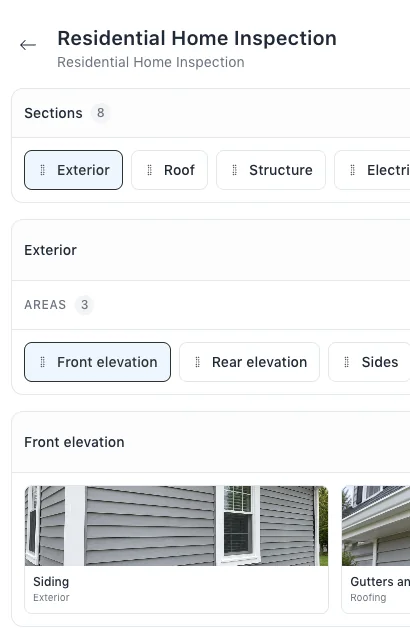
- Your inspection templates, with their sections, areas and items.
- Your own comments, as findings and recommended actions in your libraries.
Sources
- Home Inspector Pro, “How to move templates or inspection files between 2 Mac computers”
- Home Inspector Pro, “How to move (transfer) Home Inspector Pro between two Windows machines”
- Home Inspector Pro, “How to get Clients, Agents and Contracts from HIP Office”
- Home Inspector Pro, “Backing Up Home Inspector Pro on Windows”
Name Home Inspector Pro in your message.
The team will reply by email and ask for your template files.